
PROXY for Windows 8
VanyaPROXY runs on Windows 8 and 8.1, 32-bit or 64-bit, with no extra system updates to install first. The only thing the installer downloads is .NET Framework, straight from Microsoft.
Requirements
- Windows
- 8 or 8.1, 32-bit or 64-bit
- Account
- administrator
- Connection
- needed while installing
- Disk space
- up to 5.5 GB
Installing it on Windows 8, step by step
-
Launch the setup and approve it
Open the file you downloaded. If SmartScreen warns you about it, select More info, then Run anyway. When User Account Control asks for permission, choose Yes. Without admin rights, Windows won’t let the app set up a network adapter and a service of its own.
-
Let .NET Framework finish
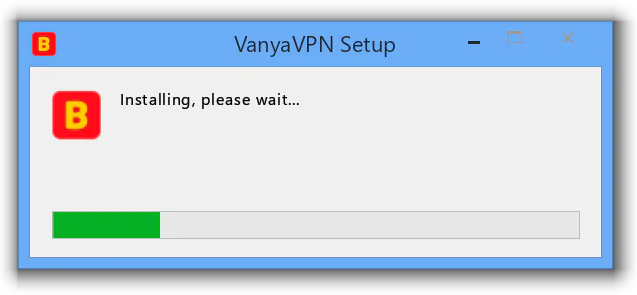
Windows 8 and 8.1 don’t ship with a recent enough .NET Framework, so unless Windows Update has already added one, the installer fetches it. On Windows 8 that’s version 4.6.1, around 65 MB, and on 8.1 it’s 4.8, around 116 MB. Microsoft’s setup runs in its own window for 10 to 20 minutes, while ours simply reads “Installing, please wait...”.
-
Connect
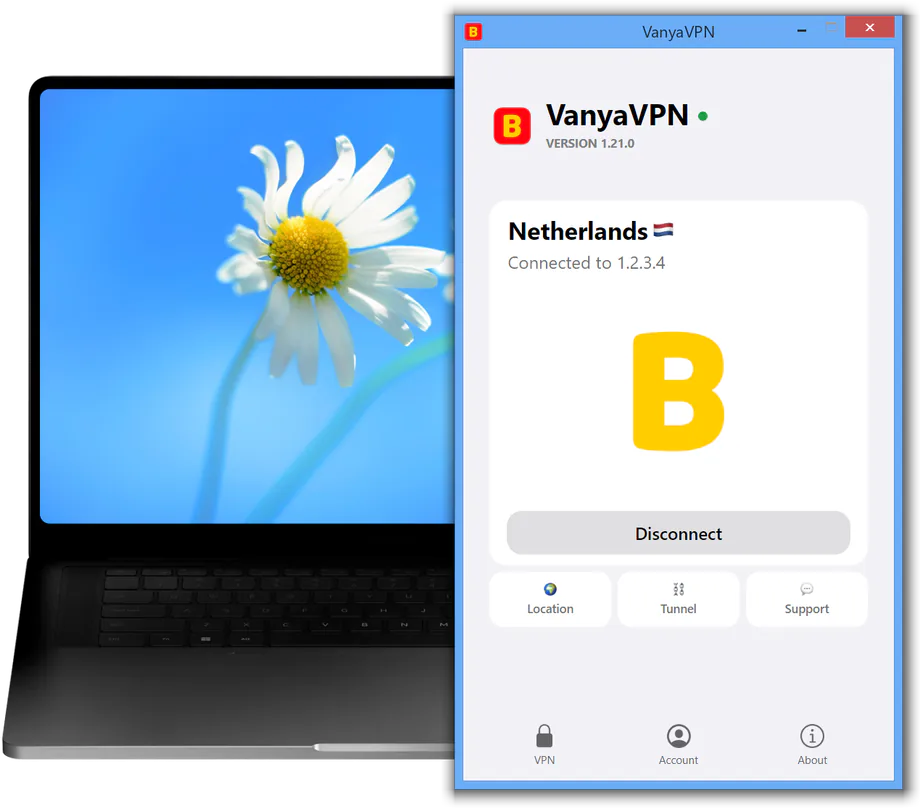
The app opens when the installation is done. If the installer asks you to restart Windows instead, start the app after the restart from the desktop shortcut or the Start screen. Sign in, pick a location and click Connect. If the account has no active subscription, the plans come up first.
Windows 8 or 8.1, and later upgrades
To see which one you have, press Win+X and open System. For the app, the only difference is which .NET Framework the installer adds. Moving from 8 to 8.1 doesn’t affect it, and there’s nothing to reinstall.
Upgrading to Windows 11 or 10 is another matter. After that, the app opens on its “Windows has been updated” card and won’t turn the PROXY on until it’s installed again. The “Reinstall the app” button on that card takes care of it, or you can download the installer from this page once more.
PROXY for Windows 8: common questions
Can a Windows RT tablet run it?
No. Windows RT only runs apps from the Windows Store, so regular desktop programs like VanyaPROXY can’t be installed there.
What if .NET Framework fails to download or install?
The error window gives you a link to the right version on Microsoft’s website. Install .NET Framework from there, then open the installer again.
A message says the network components weren’t installed
Restart the computer, then start the installation over. Free up at least a gigabyte on drive C and switch off your antivirus while it installs. If that doesn’t help, write to our support team.
I already have an older VanyaPROXY. Can I keep it?
No. Versions older than 1.20 stopped connecting on September 13, 2026. Download the installer here and it installs the new version on top of the previous one.
What about a computer with Windows 7?
Yes, if it has Service Pack 1. The page about Windows 7 shows how to check for it and what to do if it’s missing.
Buying a subscription
One subscription covers this computer and your phone. Just sign in to the same account on both.
-
2 years
-
Year
-
6 months
- Month No bonus months $5/mo

The “Vanechka” trial
3 days with every country for $0.50, once per account. After that it continues month to month, and you can turn renewal off in your account.
If it does not work for you, we refund the payment under our refund policy.