
PROXY on an OpenWrt router
Our router app installs right on a router running OpenWrt. Your whole home network then goes online through the app, and no device needs an app of its own.
First make sure the router fits, that’s step 1
- Firmware
- OpenWrt 24.10 or 25.12
- Memory
- 256 MB or more
- Install
- one command over SSH
- Router page
- 192.168.1.1:8790
Installation, step by step
You need a computer on the router’s home network and an account with an e-mail and a paid subscription.
-
Make sure your router fits
You need official OpenWrt 24.10 or 25.12 firmware with fw4. Version 23.05 and older won’t work. The router needs at least 256 MB of RAM, which LuCI shows under Status → Overview as 200 MiB or more. The router itself has to be online.
The root user needs a password. Set it in LuCI at http://192.168.1.1/ under System → Administration, or over SSH with
passwd.If pbr, podkop, passwall, passwall2, homeproxy, openclash, nikki, mihomo, a standalone sing-box service or another of our services’ package is on the router, remove it first, or the installer will refuse.
If there’s no package for the router’s processor, the installer says so and changes nothing. Such a router can still connect without the app, as under Other routers, if its firmware has an OpenVPN or PPTP client.
-
Connect to the router over SSH
Run the command below in a terminal on your computer. PowerShell works on Windows, and the regular terminal on macOS and Linux.
On the first connection answer
yes, then type the root password.What you’ll seeThe
root@OpenWrt:~#prompt.If your router has another address, use it instead. In PuTTY it’s the same address, port 22, login root.

-
Paste the install command into the SSH window
The installer works out the OpenWrt version and the router’s processor by itself. The command ends with
--lang en, so the installer talks to you in English.What you’ll seeThe installer checks the router and asks you to confirm. Type
yand press Enter. Any other answer cancels the install and leaves the router as it was.By default your whole home network goes through the app, and you can pick individual devices later, in step 7. The same command is in your account, on the OpenWrt tab of the Router section.
-
Wait for the installer to finish
It adds system packages from the OpenWrt repository, downloads the app, checks its checksum and starts it. Keep the SSH window open until it’s done.
What you’ll seeThe final line begins with “Done” and contains the router page address.
A “No package from …” line isn’t an error while the installer tries the next address. Once the addresses run out, “Critical error” comes next, see the questions below.
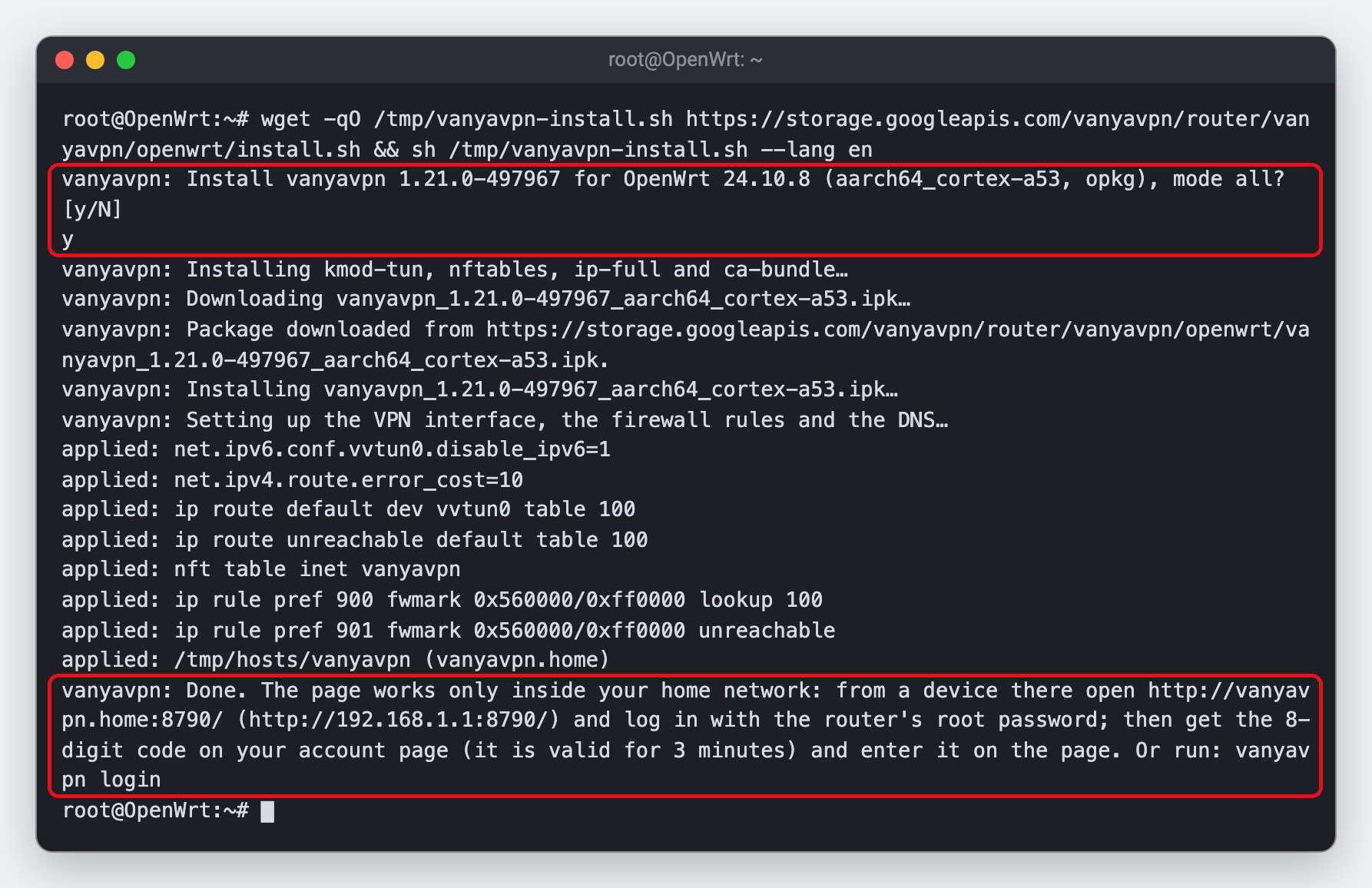
An example of the output. Your versions, processor and the wording of the question may differ. -
Log in to the router page with the root password
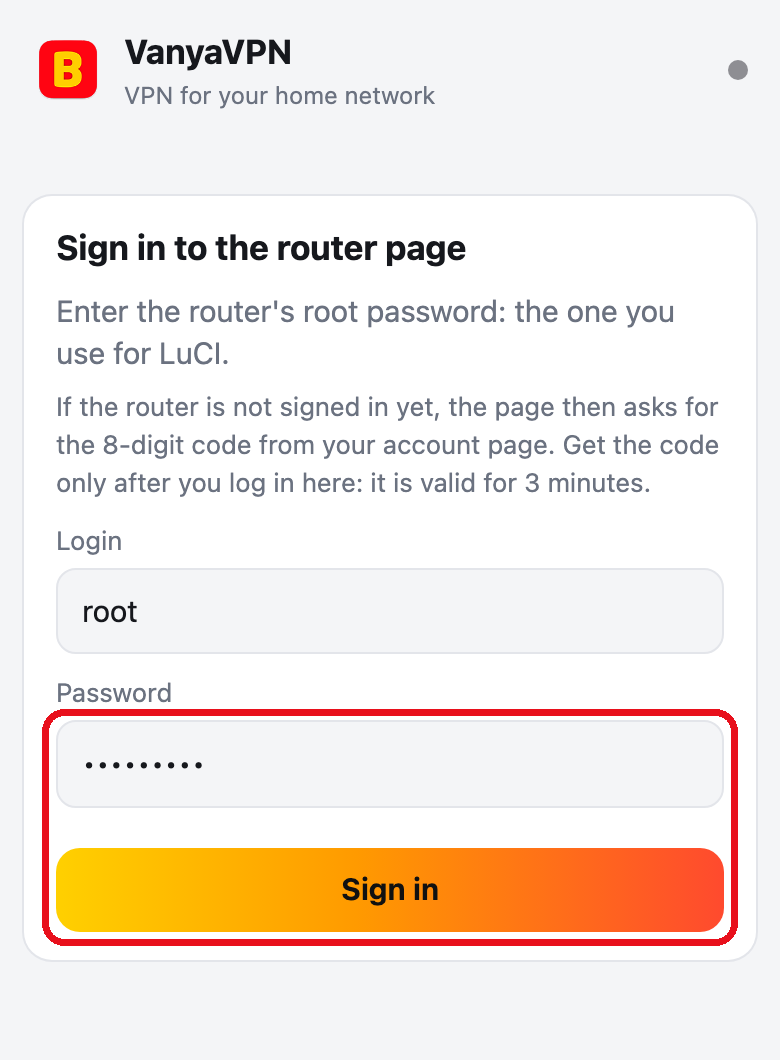
On your home network open http://192.168.1.1:8790/ or press “Open router settings” in your account.
The login is already filled in as root, and the password is the same as for LuCI and SSH.
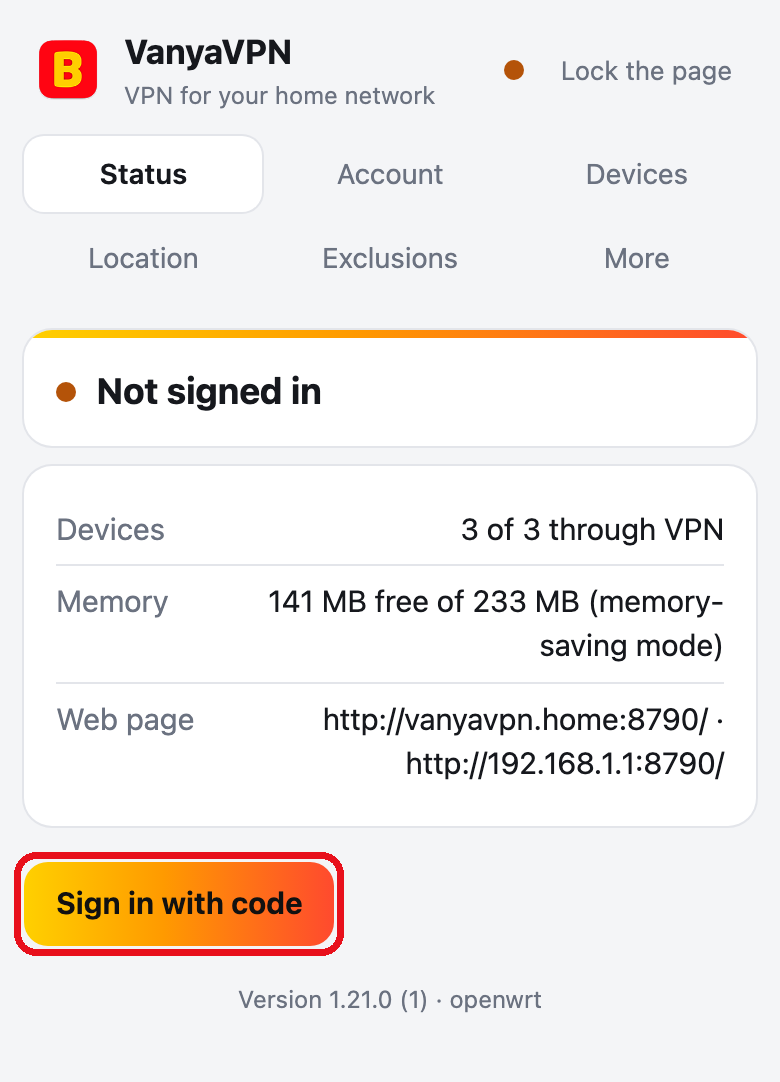
What you’ll see“Not signed in” and a “Sign in with code” button. The router hasn’t joined your account yet.
-
Sign the router in using a code from the account page
On the router page, click “Sign in with code”. In your account, on the OpenWrt tab of the Router section, click “Get code” and enter the eight digits back on the router page, in the “One-time code” field. A code lasts 3 minutes.
What you’ll seeThe page sends the code by itself after the last digit, and the Status tab shows “Connected”.
A red note in place of “Get code” means there’s no e-mail on your account, and the router won’t take such an account. Log in with an e-mail first. The mirror buttons above the code field only matter when the router has no link to the service.
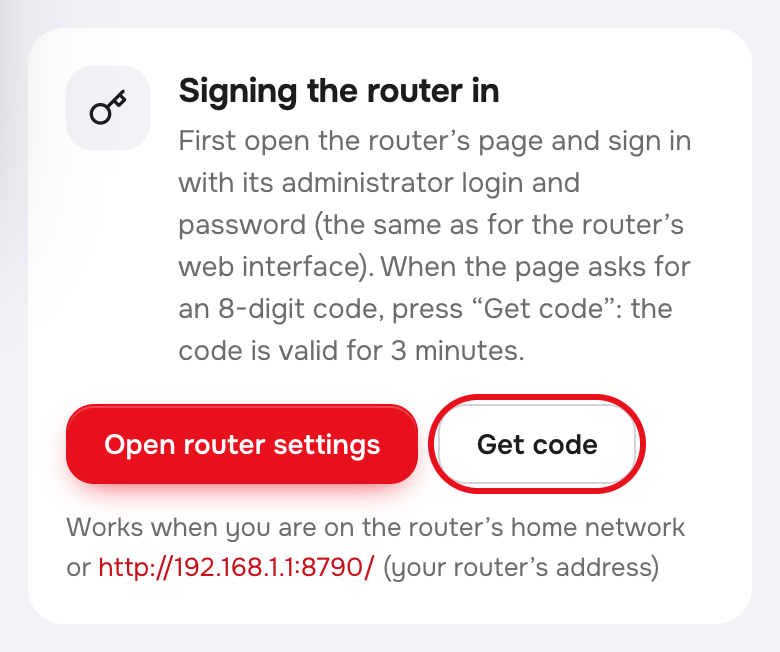
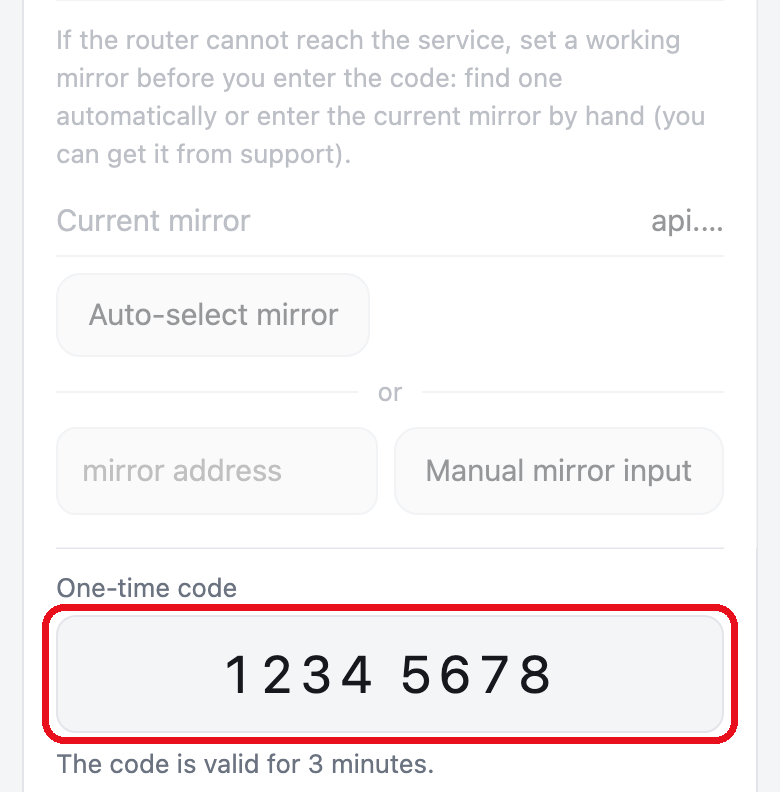
The code on the screenshot is made up. 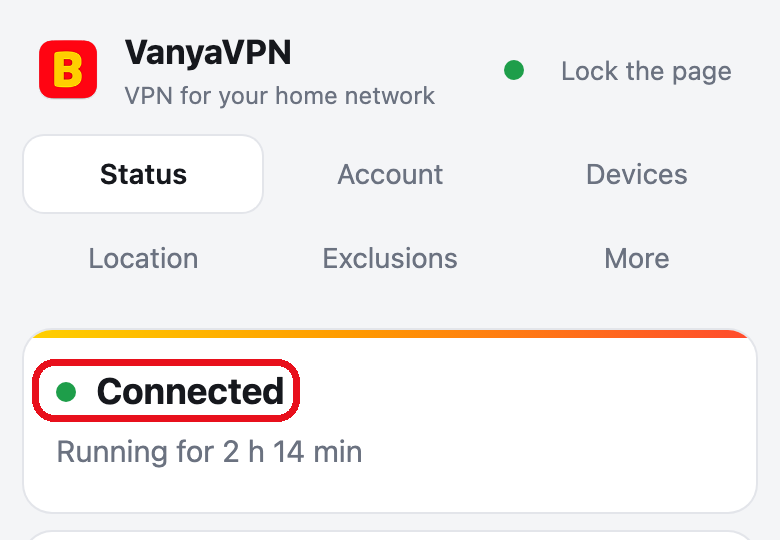
-
Decide which devices go through the app
After the install your whole home network goes through the app, new devices included.
To let a device go online directly, untick it on the Devices tab. The other devices aren’t affected.
If only some devices should use the app, choose “Only selected devices use VPN” there and tick them. The rest and new ones go online directly.
What you’ll seeA ticked device switches to the app within a minute.
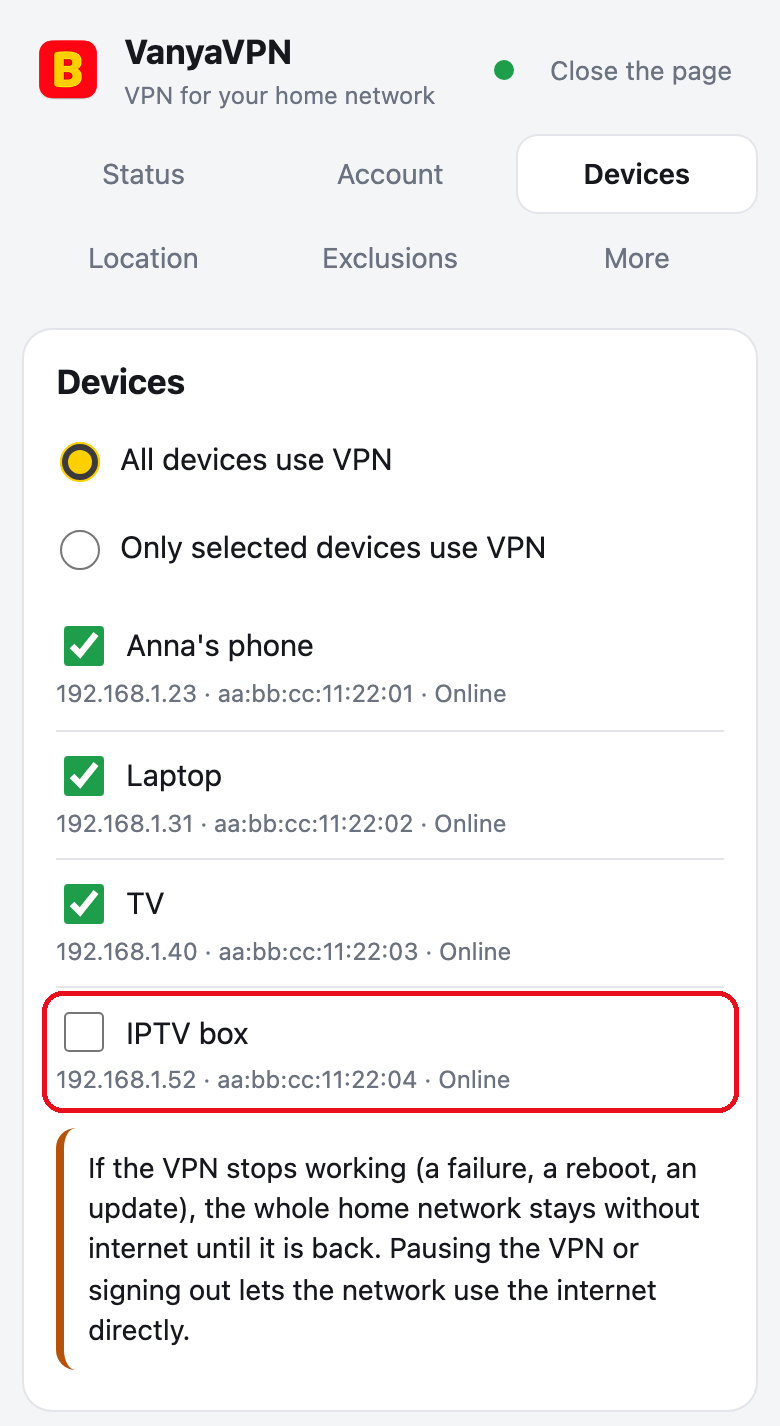
Here only the unticked IPTV box goes online directly. The names of the devices are invented.


How to remove it
Press “Remove…” on the More tab of the router page. A window asks for the router’s admin name and password, the name root is already filled in. Press “Remove” within 2 minutes, otherwise open the removal window again.
The router lets the devices go online directly, removes its settings and deletes the package.
Over SSH it’s , and after it removes the package, or on OpenWrt 25.12.

Before you update the firmware
An OpenWrt firmware update wipes the installed packages, the app among them. Right before the update, press “Prepare for the upgrade” on the More tab of the router page, or run over SSH. The devices then go online directly, and the router remembers the app version and the account sign-in. Keep settings when you flash. A router settings backup made after the preparation contains your account’s access keys, so don’t share or publish it.
After the flash the router puts the app back by itself, with the same account, even when you move from 24.10 to 25.12. If the app still isn’t there, for example because you skipped the preparation, reinstall it with the step 3 command and sign in with a new code as in step 6.
Also worth knowing
- Stopping the app
- after
the network goes online directly at once - Reconnecting
- while the app reconnects, devices that use the app wait without internet rather than go online directly
- Updates
- by default they install on their own at night, between 03:00 and 05:00 router time. You can turn automatic updates off under More → Update, or update right away there with the Check for updates and Install now buttons. While an update installs, devices that use the app stay offline for about a minute
- Exclusions
- the Russia preset or your own list of sites, on the Exclusions tab
Common questions
SSH won’t connect to the router
Check that the computer is on this router’s network and the address is right. If Windows has no ssh command, add OpenSSH Client under Settings → Apps → Optional features, or use PuTTY. If SSH says REMOTE HOST IDENTIFICATION HAS CHANGED after a reflash, run ssh-keygen -R 192.168.1.1 and connect again.
The router won’t take my password
Use the root password, the same as for LuCI. Step 1 shows how to set it.
The terminal complains about wget or &&
The command went to the computer rather than the router. Connect over SSH as in step 2 and paste it in the window with the root@OpenWrt:~# prompt.
The installer refused to install the app
The reason follows the words “Critical error”. Before the [y/N] question the installer only checks the router and changes nothing. Most often there’s no root password, one of the packages from step 1 is installed, the router is offline, it has less than 200 MiB of RAM, the firmware is older than 24.10 or the internal memory is short of space.
The router page doesn’t open
Open it from a device on the home network, the guest network can’t reach it. Type http://192.168.1.1:8790/ or your router’s address with port 8790. Also check that the installer got as far as the “Done” line.
The code expired or isn’t accepted
Get the code once the router page is open on the Account tab. It lasts 3 minutes and works once. If the page says the code comes from an account without an e-mail, log in with an e-mail and get a new one.
A device goes online bypassing the app
That happens while the router isn’t signed in, the subscription isn’t paid, during a pause or while the service on the router is stopped. The Status tab shows whether the router is connected. Also check that the device is ticked on the Devices tab.
What the subscription costs
-
2 years
-
Year
-
6 months
- Month No bonus months $5/mo

The “Vanechka” trial
3 days with every country for $0.50, once per account. After that it continues month to month, and you can turn renewal off in your account.
If it does not work for you, we refund the payment under our refund policy.